Make Your Home Smarter, One Step at a Time

Table of Contents
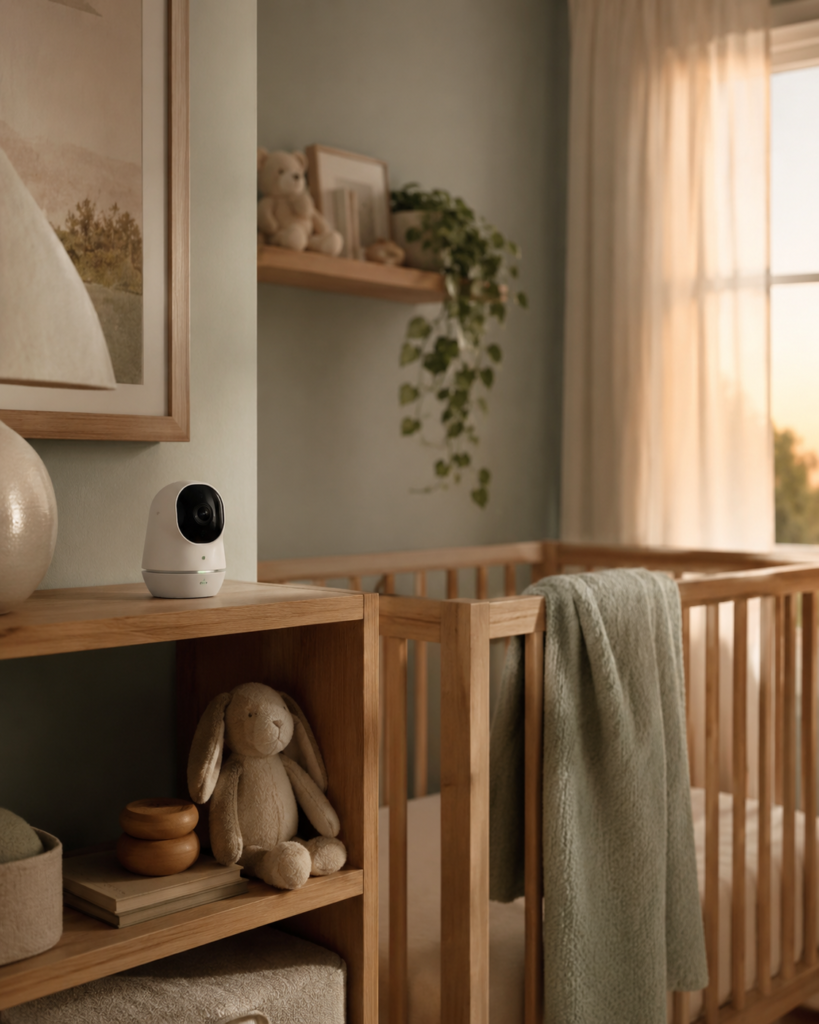
How to secure your smart home from hacking usually starts with a story like this one. A few years ago, a Texas couple installed a smart camera in their nursery so they could keep an eye on their newborn from the kitchen. One night, a stranger’s voice came through the speaker and started talking to their baby. The camera hadn’t been “hacked” in some Hollywood, guy-in-a-hoodie sense — the family had just never changed the default password. That’s it. That was the whole vulnerability.
Stories like this get shared, everyone feels a chill, and then most of us go right back to using “admin123” on our router. I get it — smart home security sounds like something you need a computer science degree to understand. It isn’t. Most smart home hacks succeed not because attackers are geniuses, but because we leave the front door open and call it convenience.
This guide walks through everything you actually need to know: whether your devices can really be hacked, how to lock down the Wi-Fi network everything runs on, how to protect your privacy (a slightly different problem from “security”), and just how at-risk your home really is. No jargon, no fear-mongering — just what works. And once you’ve got the fundamentals down, I’ll show you the five devices I’d actually trust to close the gaps this article talks about.
Settings saved.
This is part of our broader Home Security coverage here on TechNest Decor, where we dig into everything from cameras to locks to full monitoring systems — and it pairs with our wider Smart Home hub if you’re setting up more than just security gear.
Key Takeaways
- Smart home devices absolutely can be hacked — cameras, baby monitors, and smart locks are the most common targets.
- Your Wi-Fi router is the foundation of smart home security; if it’s weak, everything connected to it is exposed.
- Privacy and security aren’t the same thing — a device can be “unhacked” and still be quietly harvesting your data.
- Most fixes are free: strong passwords, two-factor authentication, firmware updates, and network segmentation.
- Some popular “fixes” (aluminum foil on your router, unplugging it overnight) are myths that do little or nothing.
Can Smart Home Devices Actually Be Hacked?
Short answer: yes, and it happens more often than people realize. Smart home devices are essentially small computers with microphones, cameras, or door-locking mechanisms attached — and like any computer, they can be broken into if they’re poorly secured.
The devices that get hacked the most are the ones with a camera or microphone and a cloud connection: smart cameras, video doorbells, and baby monitors top the list, followed closely by smart locks and voice assistants — the same category of connected gear we cover across our Smart Gadgets section. Why these? Because they’re often set up quickly, rarely updated, and frequently left on factory-default credentials that are publicly listed in the product manual — or a quick search away. If you’re specifically worried about the camera angle of this, we broke down which security cameras don’t even need Wi-Fi to begin with — removing the network attack surface entirely is one option worth knowing about.
The primary risk isn’t usually some sophisticated exploit. It’s credential reuse. If you’ve ever used the same password for your smart camera as you did for an old forum account that got breached in 2019, that password is sitting in a leaked database somewhere, and automated tools try it against thousands of devices a day. This is called “credential stuffing,” and it’s how the vast majority of smart home break-ins actually happen.
This isn’t just anecdotal, either. The FBI’s Internet Crime Complaint Center has issued repeated public warnings about smart devices being hijacked through weak or reused credentials — the same pattern behind the nursery camera story above. When a federal agency is putting out consumer alerts about baby monitors, it’s a good sign this isn’t internet paranoia
How to Tell If a Device Has Been Hacked
A few signs are worth paying attention to:
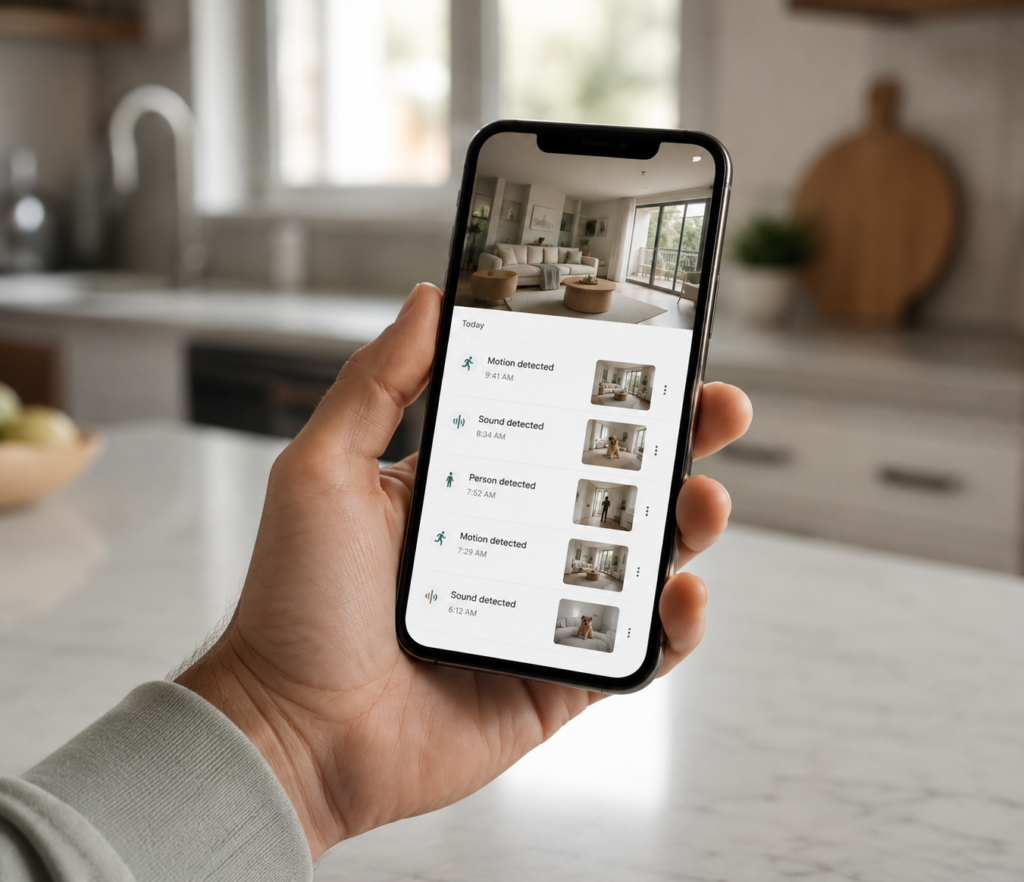
- The device’s activity light turns on when you’re not using it, or it moves/pans on its own
- You notice login attempts or sessions from unfamiliar locations in the app’s activity log
- Settings change without your input — new users added, notifications disabled, camera angles shifted
- Your smart speaker responds to commands you didn’t give
- Unusually high data usage from a device that should be sending very little traffic
If you spot any of these, don’t just unplug the device and hope for the best. Change the account password immediately (from a different device), enable two-factor authentication if it’s available, and check whether the device needs a firmware update or factory reset.
Does Unplugging a Router Actually Stop Hackers?
This is a common instinct, and it’s only partially useful. Unplugging your router does cut off active remote access in the moment — but it doesn’t remove malware that may already be sitting on your devices, and it doesn’t fix the underlying vulnerability (weak password, outdated firmware) that let the attacker in. Think of it like closing a window during a break-in: it stops what’s happening right now, but the intruder can just come back through the same window later unless you actually fix the lock.
If you want the government’s own field manual on this, the Cybersecurity and Infrastructure Security Agency (CISA) publishes guidance on securing home networks that lines up almost exactly with the steps below — change default credentials, keep firmware current, and segment untrusted devices. It’s dry reading, but it’s the same advice repeated by every serious security team for a reason
Lock Down Your Wi-Fi First — Everything Else Depends on It
Here’s the thing most smart home guides bury too far down: your Wi-Fi network is the foundation everything else sits on. You can buy the most “secure” smart lock on the market, but if it’s connected to a router still running its factory password, you haven’t secured anything — you’ve just added another door with the same broken lock. (If you’re shopping for that lock, we’ve already done the legwork — see our best smart lock for front door picks for 2026 for models that pair encryption with real-world reliability.)
Can hackers access your home Wi-Fi? Yes, and there are a few common ways in: weak or default router passwords, outdated router firmware, and WPS (Wi-Fi Protected Setup) left enabled, which is convenient but notoriously easy to exploit. Routers are also a favorite target because, unlike your phone or laptop, most people never think to update them.
How Do I Know If My Home Wi-Fi Is Hacked?
Watch for:
- Devices connected to your network that you don’t recognize (check your router’s “connected devices” list)
- Internet speeds that have dropped noticeably without explanation
- Your router’s admin password no longer working, or settings you didn’t change
- Antivirus or security alerts flagging suspicious network activity
If you’re wondering whether your Wi-Fi is being actively monitored rather than “hacked” outright, that’s harder to detect from the outside — but the same network audit (checking connected devices and router logs) is your best first move.
How to Actually Make Your Home Wi-Fi Secure
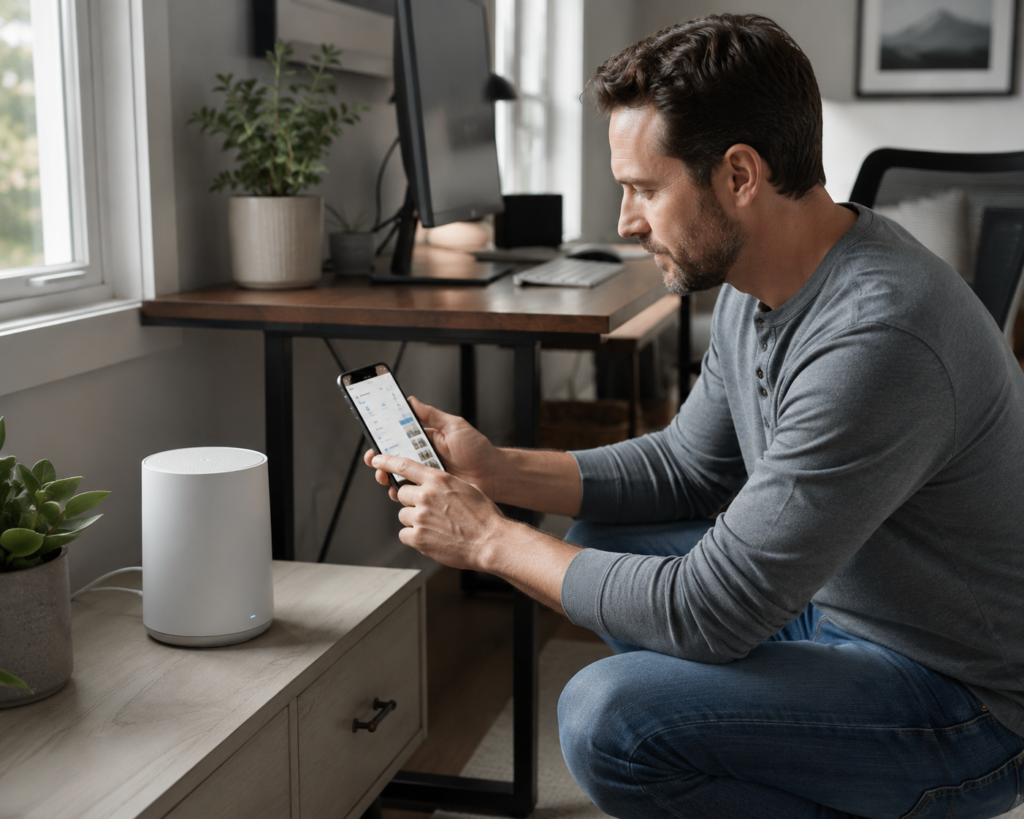
- Change the default admin password on your router — not just the Wi-Fi password, the one that logs you into the router’s settings page. This is the one most people skip.
- Use WPA3 encryption if your router supports it (WPA2 is the acceptable minimum; avoid WEP entirely — it’s essentially unlocked).
- Update your router’s firmware regularly. Many routers now do this automatically, but it’s worth checking manually every few months.
- Turn off WPS unless you specifically need it.
- Create a separate guest network for smart devices. This is one of the highest-impact steps you can take — if a smart plug gets compromised, it can’t be used as a stepping stone to your laptop or phone if it’s sitting on an isolated network.
- Rename your network so it doesn’t broadcast the router brand/model, which can hint at known vulnerabilities to an attacker scanning the area.
If you’re wondering what actually makes a password “strong” beyond the usual advice, the National Institute of Standards and Technology’s digital identity guidelines are the source most security tools quietly follow — length matters more than forced complexity, and reused passwords are flagged as a bigger risk than short ones. It’s worth a skim if you’ve ever wondered who decides these rules in the first place.
Quick Myth-Busting: Foil, Resets, and Other Wi-Fi Folklore
Two questions come up constantly, so let’s settle them:
Does resetting a router get rid of hackers? A factory reset can remove malware that’s been installed on the router itself and forces you to set new credentials — genuinely useful. But it won’t help if the attacker’s real entry point is a weak password you re-use afterward, or a compromised device elsewhere on the network.
What happens if you put aluminum foil on your Wi-Fi router? This one’s mostly internet folklore. Foil can block or redirect a signal, but it does nothing to address the actual security of your network, and in most home setups it just weakens your Wi-Fi coverage for no real benefit. Skip it.
Protecting Your Privacy — A Different Problem From “Security”
It’s worth separating two ideas that get lumped together: security is about keeping unauthorized people out. Privacy is about controlling what authorized companies — the ones who made your devices — are allowed to see, store, and sell. A device can be perfectly “secure” from hackers and still be a privacy problem, because it’s doing exactly what it was designed to do: collect data.
Smart speakers listening for wake words, cameras storing clips in the cloud, and apps tracking your routines all raise legitimate privacy questions independent of hacking risk. The most concerning privacy implications tend to involve always-on microphones, location tracking through smart locks and doorbells, and data-sharing agreements buried in terms of service that let manufacturers sell aggregated behavioral data to third parties. This is actually one of the biggest differences we found when we did a real side-by-side of Amazon Echo vs. Google Home — the hardware security is comparable, but the data-handling philosophy is not, and it’s worth knowing before you commit to an ecosystem.
Are Smart Home Apps Safe?
Generally, apps from established manufacturers (Google Home, Amazon Alexa, Apple Home, major smart lock brands) go through reasonable security vetting and are safe to use when kept updated. The bigger risk usually isn’t the app itself it’s the permissions you grant it and the third-party integrations you connect. Before linking a new skill or integration, ask: does this actually need access to my camera, location, or contacts to do its job? This applies beyond cameras and locks, too — even a device like a mapping robot vacuum is quietly building a floor plan of your home, which is exactly the kind of permission worth double-checking; our robot vacuum mop picks for 2026 covers which models handle that data responsibly.
The FTC has taken enforcement action against smart device makers before, specifically over vague or misleading data practices in their apps. That’s worth knowing before you tap “accept” on a permissions screen without reading it the agency responsible for consumer protection has already flagged this exact blind spot industry-wide.
Practical Privacy Habits
- Review and delete voice recordings periodically in your smart assistant’s privacy settings
- Turn off cloud storage for cameras you don’t need remote access to, or use local storage where available
- Mute microphones on devices in bedrooms and other private spaces when not in use — this matters even for ambient devices like smart bedroom LED wall decor lights if they’re app-connected and always-listening for voice commands
- Read the privacy settings (not the full terms of service — just the toggles) during setup, not months later
- Use unique, randomly generated passwords for each smart home account, stored in a password manager
As a general rule for what to keep private online: your home address, daily routine/schedule, financial details, children’s information, and any live location data are the five things worth being most protective of — smart home devices touch on nearly all five, which is exactly why they deserve extra care.
So — How Secure Is a Smart Home, Really?
Here’s the honest answer: a smart home is as secure as its weakest connected device and its network foundation — nothing more, nothing less. The convenience is real, but so is the expanded attack surface. Every device you add is another potential entry point, which is why security experts often talk about smart homes in terms of “attack surface” rather than any single point of failure.
The most common threats aren’t exotic — they’re credential stuffing, unpatched firmware, and devices left on default settings. The most common disadvantages people run into are less about hacking and more about the ecosystem itself: dependency on internet connectivity (a router outage can lock you out of your own lights or locks), subscription fatigue, and the privacy tradeoffs discussed above.
It’s worth noting this dependency risk isn’t unique to security gear — we ran into the same tradeoff writing our energy saving light globes guide, where “smart” bulbs that lose their app connection can end up harder to control than the dumb ones they replaced. If you’re building out the rest of your home’s Decor & Lighting setup alongside your security devices, that same network-dependency logic applies to every connected fixture in the house.
The safest and most secure smart home setups tend to share a few traits regardless of brand: local processing options instead of cloud-only, strong encryption standards, a track record of regular security patches, and support for two-factor authentication. Systems that support a local hub (rather than requiring everything to phone home to the cloud) generally offer better privacy, since your data isn’t constantly leaving your house.
And no, smart speakers aren’t recording everything, all the time, and sending it to a human — they’re listening for a wake word locally and only start transmitting audio after they detect it (or think they do, which is where the occasional accidental activation comes from). That’s a real privacy consideration, but it’s different from constant surveillance.
The 5 Devices That Actually Fix What This Article Talks About
Everything above is free to do — passwords, settings, habits. But two of the biggest risk categories (weak routers and cloud-dependent cameras) are also hardware problems, and no setting change fixes hardware that was never built with WPA3, local storage, or 2FA in mind. Here are five picks that map directly to the fixes covered in this guide, chosen because they hit the specific traits mentioned above: WPA3 support, local storage options, no forced cloud dependency, and real two-factor authentication.
| Product | Key Feature | Best For | Price | Rating | CTA |
|---|---|---|---|---|---|
| TP-Link Archer AX55 Pro (AX3000) Wi-Fi 6 Router | AX3000 Wi-Fi 6, 2.5 Gbps multi-gig port, WPA3 + TP-Link HomeShield, EasyMesh support | Medium-to-large homes, gigabit internet plans, smart homes with many connected devices | ~$100–$130 | ⭐ 4.7/5 5,000+ reviews | Check Price → |
| eufy Security HomeBase 3 (S380) with Video Doorbell Bundle | 2K HD doorbell, local storage expandable to 16TB, BionicMind™ facial recognition, no mandatory cloud subscription | Homeowners wanting subscription-free, local-storage security | ~$250–$350 | ⭐ 4.7/5 2,000+ reviews | Check Price → |
| Ring Alarm 8-Piece Kit + Outdoor Cam Plus (Battery) Bundle | Base station, keypad, sensors, motion detector + 2K Outdoor Cam Plus with color night vision | Homeowners wanting a complete DIY security system in the Alexa ecosystem | ~$320–$400 | ⭐ 4.7/5 8,000+ reviews | Check Price → |
| Wyze Cam v4 | 2.5K QHD video, enhanced color night vision, built-in spotlight, IP65 weather resistance, microSD local storage | Budget-conscious buyers wanting indoor/outdoor coverage without mandatory subscription | ~$35–$50 | ⭐ 4.6/5 15,000+ reviews | Check Price → |
| Google Nest Cam Indoor (Wired, 3rd Gen) | 1080p HDR video, 135° field of view, person/animal/vehicle detection, tied to Google account 2FA | Households already on the Google Home ecosystem | ~$90–$120 | ⭐ 4.7/5 4,000+ reviews | Check Price → |
📡 Best Router Upgrade: TP-Link Archer AX55 Pro (AX3000) Wi-Fi 6 Router
 5,000+ ratings
This is the single highest-leverage purchase on this list, because nothing else on your network is more secure than your router. The Archer AX55 Pro supports WPA3 out of the box, gives you a proper isolated guest network for smart devices, and includes built-in VPN support if you want to go a step further. It also gets regular firmware updates, which matters more than most people assume.
Wi-Fi Standard: Wi-Fi 6 (802.11ax) · Speed: AX3000 (Up to 3.0 Gbps) · Ports: 1× 2.5 Gbps WAN/LAN, 4× Gigabit LAN · Security: WPA3, TP-Link HomeShield · VPN: OpenVPN, PPTP, L2TP, WireGuard · Subscription: Not required
Pros
- Fast AX3000 Wi-Fi 6 performance for streaming, gaming, and remote work
- 2.5 Gbps multi-gig port supports high-speed internet plans
- EasyMesh support allows seamless whole-home Wi-Fi expansion
- WPA3 security and HomeShield protection included, no subscription needed
Cons
- Dual-band only (not tri-band)
- No Wi-Fi 7 support
- Overkill if you have fewer than 10 connected devices
~$100–$130
🏠 Check Price on Amazon
🔒 Best for Privacy-First Households: eufy Security HomeBase 3 (S380) with Video Doorbell Bundle
 2,000+ ratings
If the privacy section of this guide resonated with you, this is the fix. HomeBase 3 stores footage locally (expandable up to 16TB) instead of a manufacturer’s cloud, and has no mandatory monthly subscription — meaning your camera footage isn’t sitting on a third-party server that could itself become a target.
Resolution: 2K HD Video Doorbell · Storage: 16GB Built-in, Expandable to 16TB · AI: BionicMind™ Facial Recognition, Human/Vehicle/Pet Detection · Assistant: Alexa & Google Assistant · Subscription: Not required
Pros
- 2K HD video provides sharp and detailed footage
- Expandable local storage up to 16TB, no mandatory cloud fee
- BionicMind™ AI recognizes familiar faces and reduces false alerts
- Excellent privacy with encrypted local video storage
Cons
- Hard drive for expanded storage is sold separately
- Works best within the eufy ecosystem
- Initial cost is higher than standalone video doorbells
~$250–$350
🏠 Check Price on Amazon
🛡️ Best Full-System Option: Ring Alarm 8-Piece Kit + Outdoor Cam Plus (Battery) Bundle
 8,000+ ratings
For anyone who wants the checklist in this article handled at a system level rather than device-by-device, the Ring Alarm kit covers door/window sensors, motion detection, and a base station, all controllable through an app that supports two-factor authentication. Optional 24/7 professional monitoring is available if you want a human safety net beyond the DIY steps above.
Kit Includes: Base Station, Keypad, Contact Sensors, Motion Detector, Range Extender & Outdoor Cam Plus · Camera: 2K, Color Night Vision · Assistant: Amazon Alexa · Storage: Cloud (Ring Home optional) · Subscription: Not required for basic features
Pros
- Complete home security solution with alarm system and outdoor camera
- Easy DIY installation, no professional installer required
- Instant alerts and remote monitoring through the Ring app
- Expandable system with additional Ring sensors and cameras
Cons
- Cloud video recording requires a Ring Home subscription
- Best experience is within the Amazon Alexa ecosystem
- Full feature set (monitoring, cellular backup) requires a subscription
~$320–$400
🏠 Check Price on Amazon
💵 Best Budget Pick: Wyze Cam v4
 15,000+ ratings
Cheap cameras are often the ones running on factory-default credentials this article warns about, simply because affordability gets prioritized over security by the manufacturer. Wyze Cam v4 is the exception — no subscription is required to get core functionality, and it supports encrypted local storage via SD card so footage doesn’t have to leave the house at all.
Resolution: 2.5K QHD (2560×1440) · Night Vision: Enhanced Color · Field of View: 115° · Weather Resistance: IP65 · Storage: microSD up to 512GB & optional cloud · Subscription: Not required for basic features
Pros
- Sharp 2.5K QHD video quality with excellent image detail
- Very affordable compared to most competing security cameras
- Local recording via microSD card, avoiding mandatory cloud fees
- IP65 weather resistance suitable for indoor and outdoor use
Cons
- Advanced AI detection features require a Cam Plus subscription
- Narrower field of view than some premium competitors
- Does not include a dedicated local storage hub
~$35–$50
🏠 Check Price on Amazon
🏡 Best for Google Home Users: Google Nest Cam Indoor (Wired, 3rd Gen)
 4,000+ ratings
If you’re already in the Google ecosystem, this camera ties directly into your Google account’s existing two-factor authentication, gets consistent security patches, and avoids the default-password trap entirely since setup is tied to an already-secured account.
Resolution: 1080p Full HD with HDR · Field of View: 135° · Detection: Person, Animal & Vehicle · Assistant: Google Assistant & Amazon Alexa · Storage: Cloud (Nest Aware optional) · Subscription: Not required for basic alerts
Pros
- Crisp 1080p HDR video delivers clear indoor footage
- Person, animal, and vehicle detection without a subscription
- Wide 135° field of view covers more of the room
- Seamless integration with the Google Home ecosystem
Cons
- Maximum resolution is 1080p rather than 2K or 4K
- Continuous video history requires a Nest Aware subscription
- No local microSD card storage
~$90–$120
🏠 Check Price on Amazon
If you want a deeper breakdown of any single device category mentioned above — rather than the whole-home overview this article gives you — our Reviews & Guides section has dedicated, tested picks for cameras, locks, and hubs.
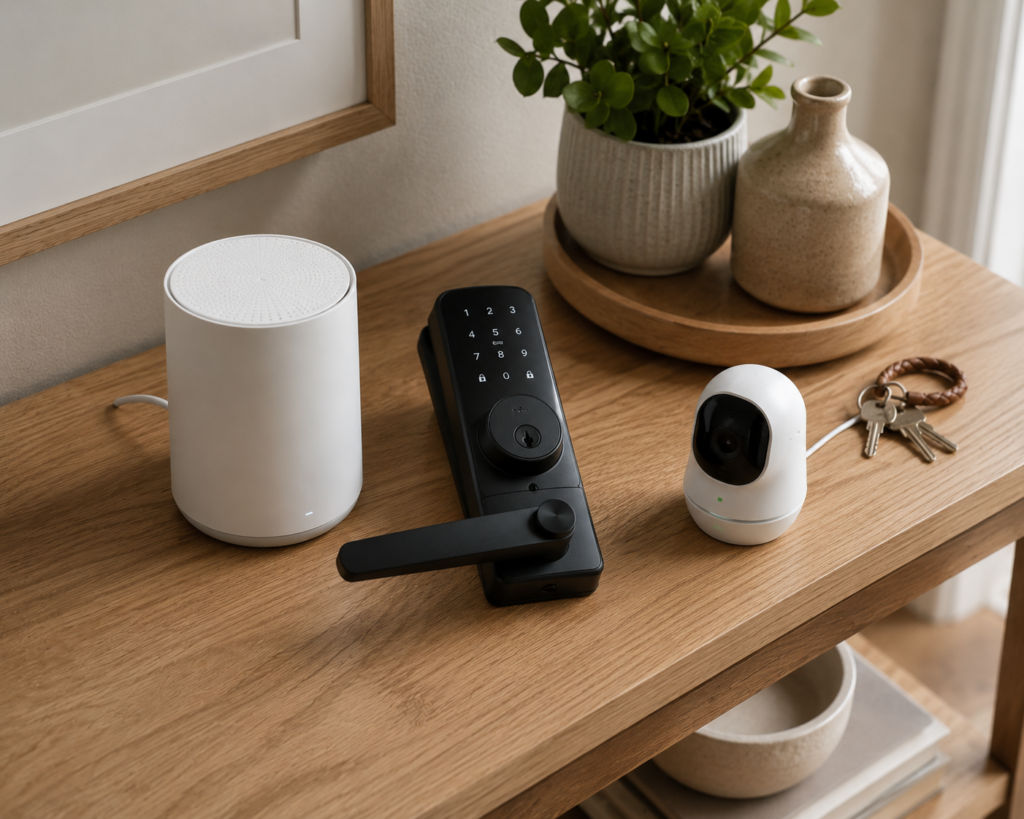
How to Secure Your Smart Home From Hacking: Your 8-Step Checklist
- Changed default passwords on router and every device
- Enabled two-factor authentication where available
- Set up a separate guest/IoT network for smart devices
- Updated router and device firmware
- Turned off WPS on the router
- Reviewed app permissions and cloud storage settings
- Deleted old voice recordings and unused device connections
- Checked the router’s connected devices list for anything unfamiliar
The Bottom Line
Smart homes aren’t inherently dangerous — they’re inherently convenient, and convenience always comes with tradeoffs worth managing rather than ignoring. The Texas family with the nursery camera didn’t need better technology; they needed five more minutes during setup to change a password. That’s really the heart of smart home security: it’s not about becoming paranoid, it’s about not skipping the boring steps that take an afternoon and save you a genuinely bad night.
Start with your router today — it’s the one change that protects everything else on your network at once. Then work through the checklist above one device at a time. You don’t need to do it all tonight, but you do need to start.
Already gone through your own smart home setup? I’d genuinely like to hear what you found — an old default password, a forgotten guest device, a setting you didn’t know existed. Share it in the comments; the next person reading this might catch the same thing because of you.